Run an iOS shortcut from CarOS
Create a shortcut in Apple’s Shortcuts app, then add it to CarOS: it runs with one tap, from the list or from the CarOS home screen.
1. Create the shortcut in the Shortcuts app
Before you begin: the Shortcuts CarApp is part of CarOS Premium. The Shortcuts app comes with your iPhone; if you deleted it, download it again from the App Store.
In this example, the shortcut sends a message. The steps are the same for any other action.
Open the Shortcuts app on your iPhone, then tap + at the top right.
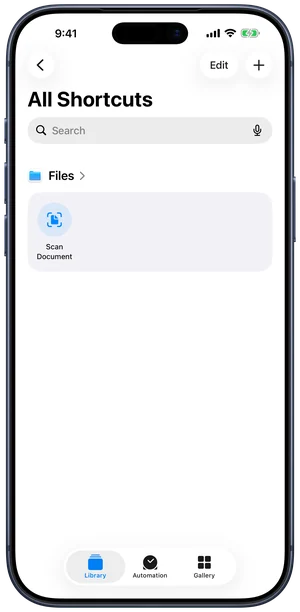
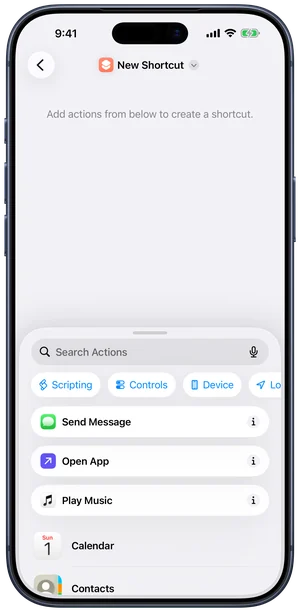
Choose an action in the list, or search for it. The apps on your iPhone add their own actions here. In this example: Send Message.
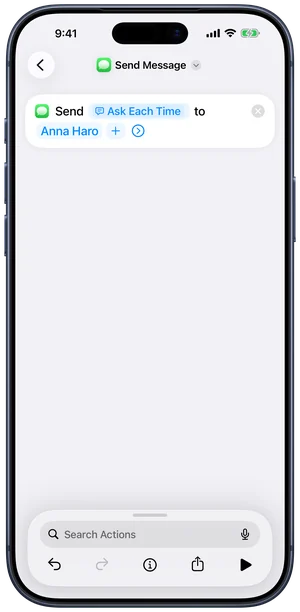
Fill in the action. Here, a recipient is chosen and the message is set to Ask Each Time: you write or dictate it when the shortcut runs.
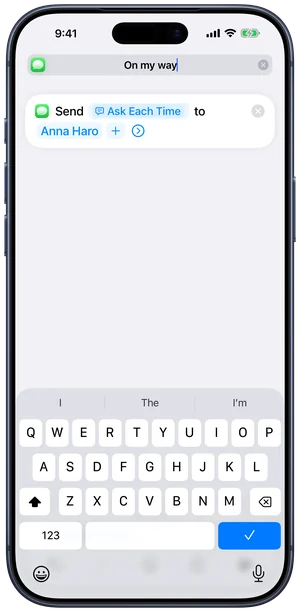
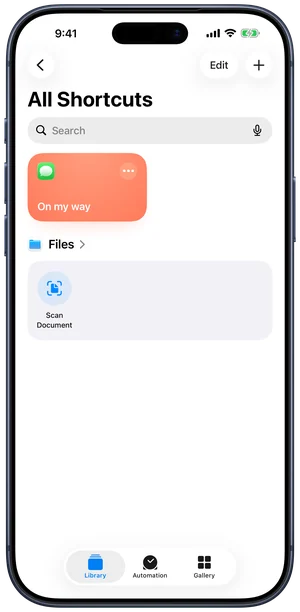
Tap the name at the top, then Rename. Give the shortcut a short name, for example “On my way”: CarOS will need exactly the same name.
Tap the back arrow. The shortcut is saved and appears in All Shortcuts.
2. Add it to CarOS
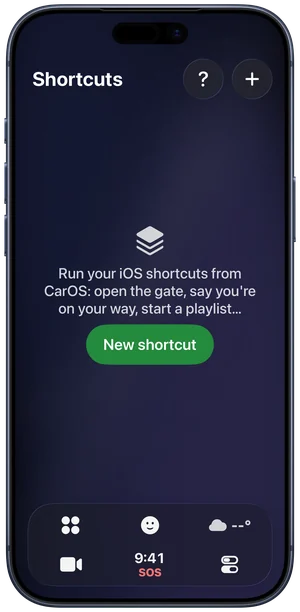
In CarOS, open the Shortcuts CarApp, then tap + (or New shortcut).
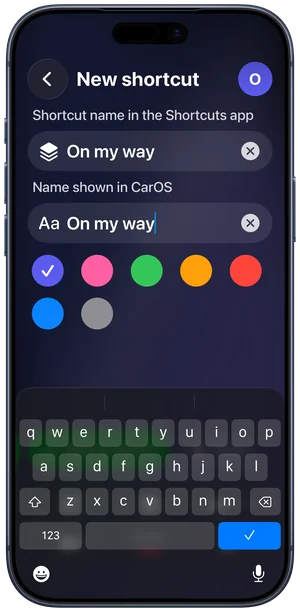
Under “Shortcut name in the Shortcuts app”, enter exactly the same name. Choose the name shown in CarOS and a color, then tap “Add to Home”.
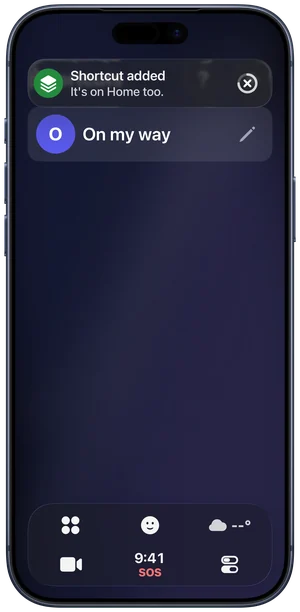
Done: the shortcut is in the list and on the CarOS home screen. Tap it to run it. iOS runs it, then you’re back in CarOS.
If it doesn’t work
CarOS can’t find the shortcut
The name entered in CarOS must be exactly the one in the Shortcuts app, with the same capitals and spaces. Tap the pencil next to the shortcut in CarOS to correct it.
iOS asks for permission
The first time a shortcut sends a message or uses another app, iOS may ask you to allow it. Choose to always allow it, so it doesn’t ask again on the road.
Change or remove a shortcut
In CarOS, tap the pencil next to the shortcut: change its name or color, try it, or delete it. To change what it does, edit it in the Shortcuts app.